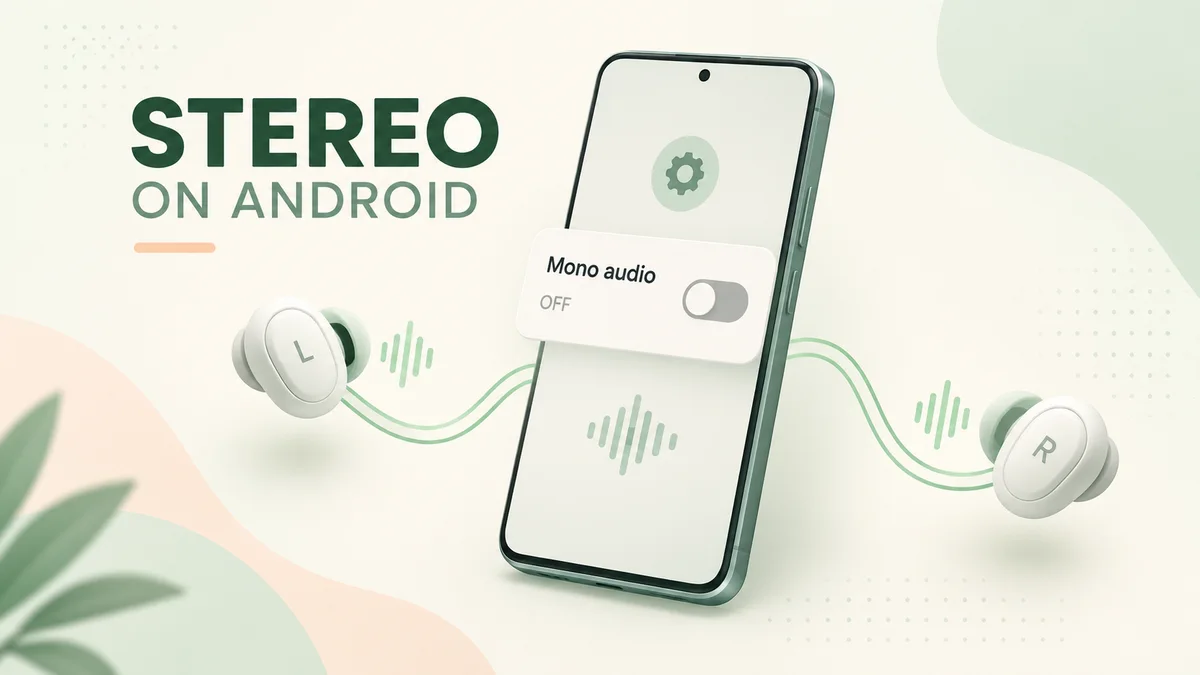
To enable stereo sound on Android, turn off Mono audio in Accessibility settings, center the audio balance, and connect stereo headphones or speakers. Android normally keeps left and right separate when the recording and output support it.
If music suddenly sounds narrow, you probably do not need a stereo booster app. Start with the phone settings, then check the connection you are actually using. A Bluetooth headset during a call behaves differently from wired headphones playing music.
Menu names vary by phone and software version, so use the search box in Settings if your screen does not match. Keep playback quiet while testing; extra volume will not restore a missing channel.
Turn off Mono audio on Android
Open Settings, search for Mono audio, and switch it off. On Pixel-style Android menus, look under Accessibility → Audio adjustment; on Samsung Galaxy, use Accessibility → Hearing enhancements.
Google's accessibility guide places channel combining and balance controls in the audio adjustment settings. There usually is no separate switch labeled Enable stereo. Turning off the setting that combines the channels lets stereo material keep its left/right differences.
- Open your phone's Settings app and select Accessibility.
- Find Audio adjustment, or search Settings for Mono audio if the label differs.
- Set Mono audio to off, then return to your player and resume the same passage.
For a Galaxy phone, Samsung documents Hearing enhancements under Accessibility. Find Mono audio there. Its position can change with One UI versions and models, so searching the setting is often faster than following screenshots from another phone.
In a Reddit post about discovering Mono audio, a listener said they had left it enabled for years and heard a striking difference after switching it off. That is one person's experience, not evidence that Android ships with mono enabled. It is a useful reminder to check an easy-to-forget setting.
Leave mono on if you need both channels in one ear or prefer it for accessibility. It is doing a legitimate job. You can temporarily disable it for this check, then restore your usual listening setup.
Center the balance if one side is quiet
Move the left/right audio balance slider to its center for a neutral test. A slider pushed toward one side changes channel levels; it does not switch mono into stereo.
Look near Mono audio for the balance control. Some phones show separate controls for connected audio and built-in speakers. Adjust the one that applies to the output you are testing, and note its original position if you normally use a personal balance adjustment.
Samsung's one-speaker troubleshooting instructions identify an off-center balance setting as one reason media may play from only one side. Centering it rules out that setting before you blame the earbud.
If the imbalance remains, check that both earbuds are charged and seated properly. A poor seal can reduce bass on one side. Compare another pair at the same comfortable level, rather than turning the quiet side up repeatedly. Change only one thing between listens, or you will not know which adjustment helped.
Check whether left and right are actually separate
Play a known left-only sound, then a right-only sound. Each should come from its named headphone side. Both should play through both sides and usually feel centered.
Open the StereoTest stereo test in your Android browser and select Start Stereo Test. It plays Left, Right, then Both. The page generates test sounds locally; it does not change Android's output device or system settings.
- If Left and Right stay separate, stereo routing works for this browser and output.
- If both signals play equally in both ears, a mono or channel-mixing setting may still be active somewhere in the playback chain.
- If only one ear plays throughout, investigate balance, the connection, or the headphones.
- If directions are reversed, check the L and R markings before changing software.
Do not judge stereo from a centered singer alone. Many stereo mixes place vocals in the middle while instruments spread out. Our explanation of what stereo sound means covers that distinction.
A normal browser result does not prove every app is configured correctly. It gives you a working reference. If a particular game or music app still sounds wrong, compare its own audio settings with that result.
Why stereo changes when a Bluetooth microphone opens
If music sounds normal until a call or voice chat starts, the Bluetooth audio mode may be changing. End the call, leave voice chat, and play the same track again before changing accessibility settings.
Classic Bluetooth separates music playback from hands-free communication. Sony's headset support guidance explains that HFP/HSP can reduce music quality compared with the A2DP music profile. Depending on the headset and connection, that change can also remove the stereo presentation you heard before the microphone became active.
A Reddit discussion about separate microphones and Bluetooth listening describes a user wanting to keep headphone playback while using another microphone on a phone. Their frustration concerns input/output routing, not a forgotten Mono audio toggle. It is a different problem with a different test.
Close the app using the headset microphone and reconnect the headphones if music mode does not return. If the app offers an input selector, try the phone microphone, but do not assume every Android app permits independent input and output choices.
Newer Bluetooth implementations and particular device/app combinations can behave differently, so check your headset's documentation before treating a call-mode limitation as universal. For a recurring gaming problem, compare a wired headset supported by your phone. Leave Developer options codecs alone for this check; changing them adds another variable without establishing which mode the app is using.
Can you enable stereo on the phone's own speakers?
Only if the phone has a stereo-capable speaker arrangement. A setting cannot turn a single media speaker into two independent physical outputs.
Check your exact model's specifications for stereo speakers. Two openings in the casing are not enough evidence: an opening may serve a microphone, and an earpiece does not necessarily play media as a second speaker.
Even with stereo hardware, the speakers sit close together, so separation can be much less obvious than through headphones. Listen in a quiet room, avoid covering the speaker openings, and compare the same left/right test with headphones. Judge which speaker is playing rather than expecting a room-filling stereo image.
Spatial audio, Dolby effects, and equalizers are separate features. You do not need a surround effect to preserve ordinary left/right channels. Temporarily turn optional effects off when diagnosing routing, then restore the sound you prefer. An app promising to force a single speaker into true stereo cannot add the missing physical output.
What to check when settings look correct
Compare another app and another output. If the problem follows one USB-C adapter or headset, investigate that accessory; if it follows one recording or app, investigate its audio instead.
For Pixel phones, Google says USB-C accessories and adapters must support digital audio. A plug fitting the port does not establish compatibility. Check the adapter specifications before buying a replacement, especially if it produces silence rather than merely narrow sound.
In a Pixel 8 USB-C discussion, a commenter reported that switching off Disable USB audio routing and reconnecting the adapter restored playback. This is a specific user report, not a universal Pixel fix. Android's developer documentation confirms that this option blocks automatic USB audio routing when enabled. Check it if you previously changed Developer options; do not enable unrelated debugging settings for a stereo test.
If a different pair works normally, use the headphone test to compare the original pair's channels and low-frequency response. If every pair passes the browser check but one app sounds mono, look for that app's mono, output, or accessibility setting. A mono recording will remain centered even when Android is configured correctly.
Before asking the phone or accessory manufacturer for help, write down your model, Android version, connection type, and whether the problem occurs in all apps or only during calls. Include which side failed the channel check. That gives support something concrete to investigate, instead of a general report that stereo does not sound right.